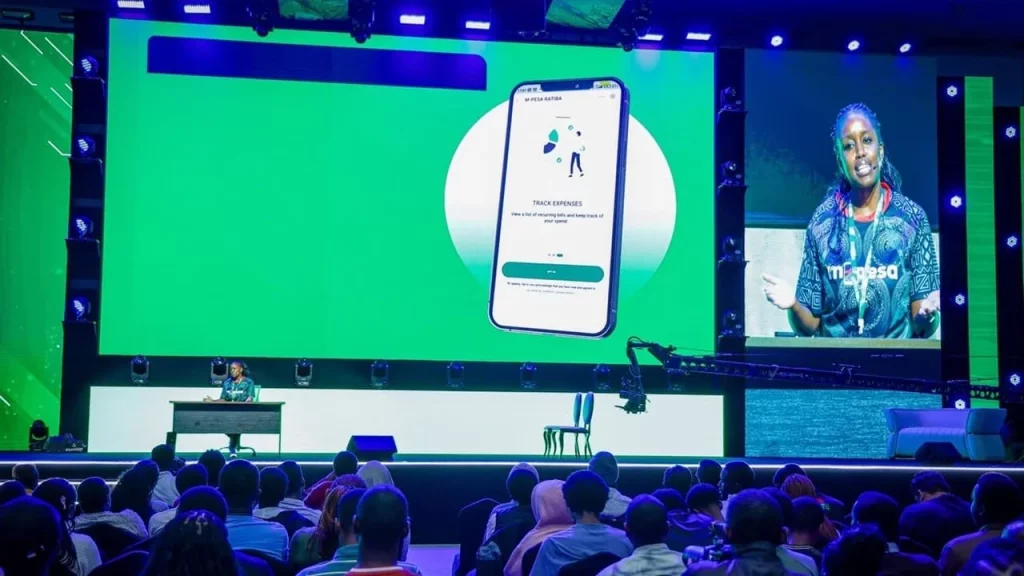
Since the launch of Safaricom’s new My OneApp, many users have reported that the mini-apps (especially M-PESA and other financial services) are not loading, showing errors, freezing, or simply not responding.
If you open the app expecting to see your M-PESA balance, send money, or pay bills but the mini-apps remain stuck or unavailable, you are not alone.
Safaricom has publicly acknowledged these early technical issues with the mini-apps and is actively working on improvements through regular updates. In the meantime, here are the quickest and most effective fixes that have worked for thousands of users.
Why Are My OneApp Mini-Apps Not Working?
The most common reasons include:
- Network-related verification delays (especially when using Wi-Fi)
- Outdated app version
- Corrupted cache or data
- SIM-binding and security checks failing in the background
- Incomplete loading of the new modular mini-app system
- Conflicts with dual SIM phones or VPNs
Quick Fixes for My OneApp Mini-Apps Not Working
Try these steps in order. Most users get their M-PESA and financial mini-apps working again within the first 3–4 steps:
Switch to Safaricom mobile data.
Turn off Wi-Fi completely and connect using your Safaricom line’s mobile data. The mini-apps load and function much better when the app detects a strong Safaricom network. Once they load successfully, you can usually switch back to Wi-Fi.
Update My OneApp to the Latest Version
Go to Google Play Store (Android) or App Store (iOS) and install any available updates. Safaricom has been releasing frequent patches specifically to fix mini-app issues.
Force Close and Restart the App
On Android: Swipe away the app from recent apps or go to Settings → Apps → My OneApp → Force Stop.
On iOS: Swipe up from the bottom and close the app completely. Then reopen My OneApp on mobile data.
Clear Cache (Android)
Go to Settings → Apps → My OneApp → Storage → Clear Cache. If the mini-apps still don’t load, try Clear Data (you will need to log in again).
Set Safaricom SIM as Primary
In your phone settings, make sure your Safaricom line is set as the default SIM for calls, SMS, and mobile data. For dual SIM users, temporarily disable the second SIM during the first login and mini-app loading.
READ ALSO:How to Solve Safaricom My OneApp Transaction Failures and Freezes
Reinstall My OneApp
Uninstall the app completely → Restart your phone → Re-download and install the latest version from the official store. Log in using Safaricom mobile data for the best results.
Disable VPN or iCloud Private Relay
Turn off any VPN, proxy, or private relay before opening the app. These tools often block the mini-apps from loading properly.
Wait and Retry After 10–15 Minutes
Sometimes the mini-apps need time to sync with Safaricom’s backend. Close the app, wait a short while on mobile data, and try again.
Temporary Workarounds While Waiting for Fixes
- Use the old USSD codes: Dial *334# for M-PESA menu (Send money, Withdraw, Buy airtime, Pay bills, etc.).
- Use the separate old M-PESA app if it is still installed on your phone (though Safaricom is encouraging everyone to move to My OneApp).
- Check your balance and do basic transactions via SMS (e.g., send “BAL” to 334).
When to Contact Safaricom Support
If the mini-apps are still not working after trying the above:
- Call Safaricom on 100 (PrePay) or 200 (PostPay) from your Safaricom line.
- Mention that your “mini-apps are not loading” or “M-PESA section is blank/not responding”.
- Provide your phone number and the exact error message (if any).
Safaricom’s technical team is prioritising these mini-app issues and pushing updates regularly.
Looking Ahead
The mini-apps not working is one of the most reported teething problems with the newly launched My OneApp. Switching to Safaricom mobile data, updating the app, and clearing cache resolves the issue for the majority of users.
As Safaricom continues to refine the app, the mini-apps should become more stable. In the meantime, the steps above plus the *334# USSD fallback will help you keep your financial services running smoothly.


Leave a Reply