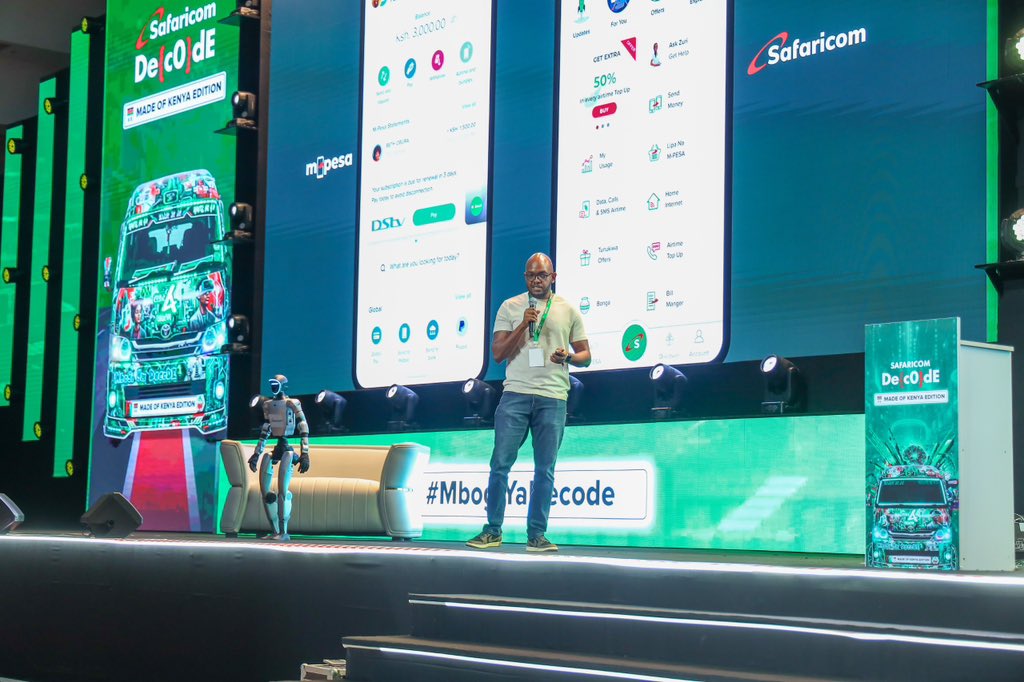
If you’re a Kenyan living abroad and struggling to use the new Safaricom My OneApp, you’re not alone.
Many members of the Kenyan diaspora report difficulties logging in, accessing M-PESA, sending money, or even opening the app while overseas.
The new unified app has stricter security and SIM-binding requirements compared to the old M-PESA app, which creates unique challenges for users outside Kenya.
Here are the most common issues faced by diaspora users and practical workarounds that actually work in 2026.
Common My OneApp Issues for Kenyans Abroad
- Login fails or the “Unable to verify SIM” error
- The app requires Safaricom mobile data, but you’re on foreign Wi-Fi.
- Frequent automatic logouts
- Mini-apps (M-PESA, financial services) not loading
- STK push or transactions not going through
- Face ID / fingerprint not recognised after login
- The app completely refuses to open or crashes.
These problems mainly occur because My OneApp heavily relies on active Safaricom SIM authentication and real-time network verification.
Proven Workarounds for Diaspora Users
Follow these steps carefully for the best chance of success:
- Activate International Roaming on Your Safaricom Line Before travelling or while abroad, ensure international roaming is activated.
- Dial *100# → Roaming → Activate International Roaming
- Or contact Safaricom customer care via WhatsApp (+254 722 002 100) or email to enable it.
- Use Safaricom Mobile Data (Roaming) for Initial Login This is the most important step.
- Insert your Safaricom SIM into your phone.
- Turn off Wi-Fi completely.
- Enable mobile data (you will use roaming data).
- Open My OneApp and log in with your M-PESA PIN. Once successfully logged in, you can usually switch back to Wi-Fi for normal use.
- Set Safaricom SIM as Primary SIM In your phone settings:
- Go to SIM cards & mobile networks.
- Set your Safaricom line as the default for calls, SMS, and data.
- For dual-SIM phones, temporarily disable the second (foreign) SIM during login.
READ ALSO:Safaricom My OneApp Mini-Apps Not Working: Quick Fixes for M-PESA & Financial Services
- Disable VPN, Proxy, or Private Relay. Turn off any VPN, iCloud Private Relay (iOS), or proxy services completely before attempting to log in. These tools often block Safaricom’s SIM verification.
- Update or Reinstall My OneApp Make sure you have the latest version from the Google Play Store or Apple App Store. If issues persist, uninstall the app, restart your phone, then reinstall and log in using roaming data.
- Clear App Cache and Data (Android) Settings → Apps → My OneApp → Storage → Clear Cache (then Clear Data if needed).
- Wait for a strong network signal. Roaming signals can be weak in some countries. Move to an area with better reception or try early morning/late night when networks are less congested.
- Use Airplane Mode Trick
- Turn on Airplane mode for 10 seconds.
- Turn it off and immediately enable mobile data (roaming).
- Open My OneApp right away.
Temporary Alternatives for Diaspora Users
While fixing the app:
- Use the *334# USSD code for basic M-PESA transactions (Send money, Withdraw cash, Buy airtime, Pay bills). This works even on roaming without the app.
- Ask a trusted friend or family member in Kenya to assist with transactions via their local app.
- Use international money transfer services (Wise, WorldRemit, Remitly, etc.) for sending money home when the app is unstable.
Tips to Make My OneApp More Reliable Abroad
- Keep a small amount of airtime on your Safaricom line (at least KSh 50–100).
- Log in once every few days to keep the session active.
- Avoid logging in over public or hotel Wi-Fi for the first attempt.
- Carry a cheap dual-SIM phone dedicated to your Kenyan line if you travel frequently.
Still Not Working? Contact Safaricom Support
- Call Safaricom Customer Care on +254 722 002 100 or +254 734 002 100 (international format).
- WhatsApp: +254 722 002 100
- Email: customercare@safaricom.co.ke Clearly state you are a diaspora user and mention the exact error message.
Safaricom is aware of diaspora challenges and continues to improve My OneApp for users outside Kenya.
Looking Ahead
Using Safaricom My OneApp from abroad is possible but requires activating international roaming and logging in on Safaricom mobile data at least once. Once you’re successfully logged in, the app usually works more smoothly on Wi-Fi.
With regular updates, the experience for Kenyans in the diaspora is expected to improve significantly. In the meantime, combining the workarounds above with the reliable *334# USSD option will help you stay connected to your M-PESA services.






Leave a Reply