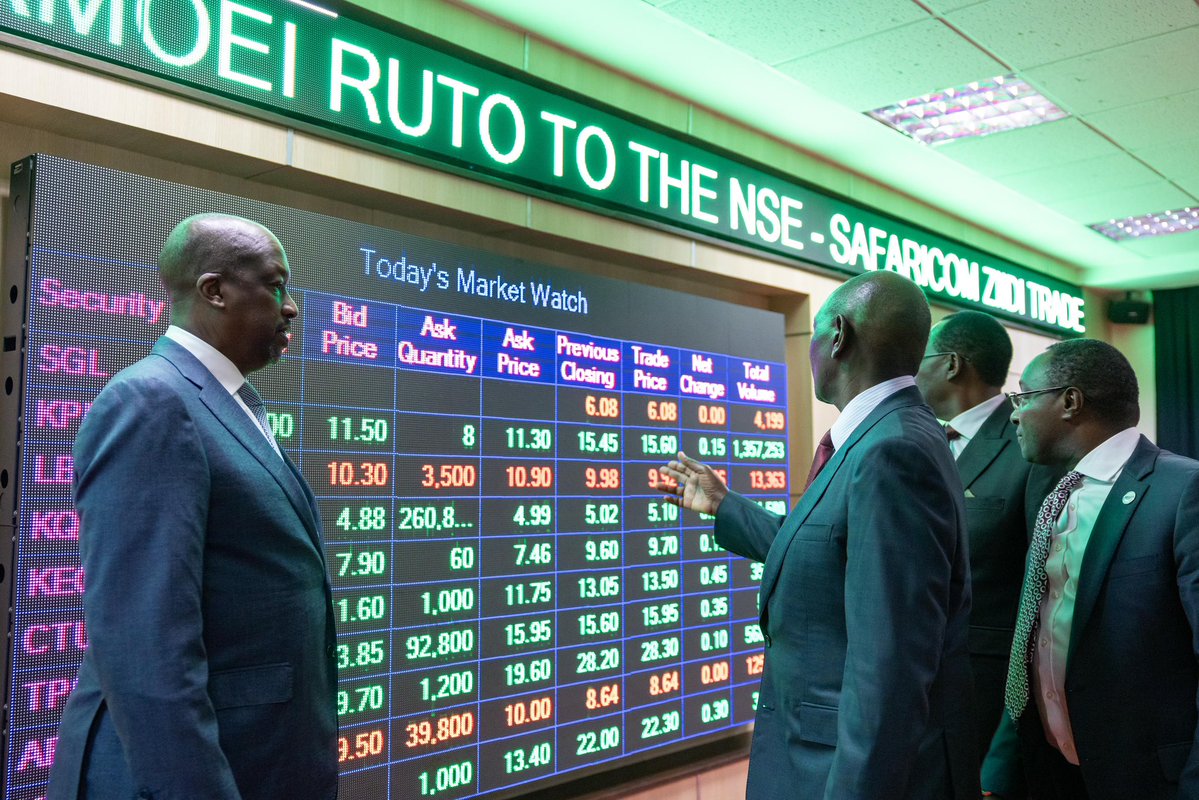
Ziidi Trader is a mini-application embedded within the M-PESA app that enables M-PESA-registered customers in Kenya to buy and sell shares listed on the Nairobi Securities Exchange (NSE) directly from their mobile phones.
Launched on February 10, 2026, the platform eliminates the need for an individual Central Depository System (CDS) account or separate brokerage registration by utilising an omnibus structure managed by Kestrel Capital.
Transactions are authorised using the familiar M-PESA PIN, and the service relies on existing M-PESA KYC credentials for onboarding.
This guide outlines the process as of February 2026, based on official descriptions and user-reported steps.
The platform is accessible via the M-PESA mobile application (ensure it is updated to the latest version) and supports trading from as little as one share, subject to available market liquidity and daily limits aligned with M-PESA thresholds.
Eligibility and Prerequisites
To use Ziidi Trader, you must meet the following requirements:
- Be an active M-PESA registered customer aged 18 years or older.
- Have a fully verified M-PESA account (KYC compliant).
- Possess sufficient funds in your M-PESA wallet for purchases (including brokerage fees of approximately 1.5% per trade).
- Maintain a stable internet connection for real-time market data and order execution.
No additional documentation, CDS account, or external broker registration is required.
Step-by-Step: Getting Started and Onboarding
- Open the M-PESA App
Launch the M-PESA application on your smartphone and log in using your M-PESA PIN. - Navigate to Financial Services
From the main menu, select the “Financial Services” section (this may appear under tabs such as “Invest” or “Wealth” depending on app version). - Select Ziidi Trader
Locate and tap on “Ziidi Trader” (it may appear as a tile or under a sub-menu). If not immediately visible, use the search function within the app and enter “Ziidi Trader”. - Accept Terms and Complete Onboarding
Review and accept the terms and conditions, risk disclosures, and investor acknowledgements.
Confirm your identity and source of funds if prompted (this leverages existing M-PESA KYC data).
An OTP may be sent via SMS for verification.
Authorise activation with your M-PESA PIN.
Once completed, the Ziidi Trader mini-app opens, providing access to live market prices, company listings, portfolio tracking, and trade execution.
Step-by-Step: How to Buy Shares
- Access the Trade Section
Within Ziidi Trader, navigate to the “Trade” tab or equivalent section displaying available NSE-listed securities. - Search and Select a Stock
Browse or search for the company or counter of interest (e.g., by ticker symbol or name).
Tap on the desired security to view real-time price, performance data, and company information. - Initiate a Buy Order
Select the “Buy” option.
Enter the quantity of shares you wish to purchase (minimum one share, subject to availability).
Specify the price (market order or limit order, depending on platform options at the time). - Review and Confirm
Review the trade summary, including total cost, estimated brokerage fee (~1.5%), and any applicable taxes or charges.
Tap “Proceed” or “Buy Shares”. - Authorise Payment
Confirm the transaction with your M-PESA PIN.
Funds are deducted from your M-PESA wallet, and the order is executed through Kestrel Capital.
Upon successful matching on the NSE, your holdings are credited to your Ziidi Trader portfolio (typically reflected promptly after trade matching).
READ ALSO:Ziidi Trader FAQ: Everything You Need to Know Before You Start Trading
Step-by-Step: How to Sell Shares
- Access Your Portfolio
Navigate to the “Portfolio” or “Holdings” section in Ziidi Trader to view your current shares. - Select the Stock to Sell
Tap on the security you wish to sell.
Choose the “Sell” option. - Enter Sell Details
Specify the number of shares to sell (up to your available holding).
Indicate the price (market or limit order). - Review and Confirm
Examine the trade summary, including expected proceeds net of fees.
Tap “Proceed” or “Sell Shares”. - Authorise the Transaction
Confirm with your M-PESA PIN.
Proceeds are credited to your M-PESA wallet upon settlement (typically aligned with NSE processes).
Additional Features and Best Practices for Beginners
- Monitor live market data, create watchlists, and track portfolio performance within the app.
- Review corporate actions, top movers, and counter-level analytics provided in the platform.
- Be aware of risks: Stock prices fluctuate, and investments may lose value. Only invest what you can afford to lose.
- Start small to familiarise yourself with the interface and market dynamics.
- Check for updates via the M-PESA app or official Safaricom channels, as features may evolve.
Looking Ahead
Ziidi Trader simplifies equity investment on the NSE by integrating trading directly into the M-PESA ecosystem, removing traditional barriers and enabling participation with minimal friction.
As of February 11, 2026, the platform is live and accessible to eligible M-PESA users.
For personalised assistance, the most accurate pricing, or resolution of any technical issues, consult the in-app help section, Safaricom customer care, or official resources from Safaricom and the NSE.
Always conduct independent research before investing and consider seeking professional financial advice if required.
Ronnie Paul is a seasoned writer and analyst with a prolific portfolio of over 1,000 published articles, specialising in fintech, cryptocurrency, climate change, and digital finance at Africa Digest News.








Leave a Reply