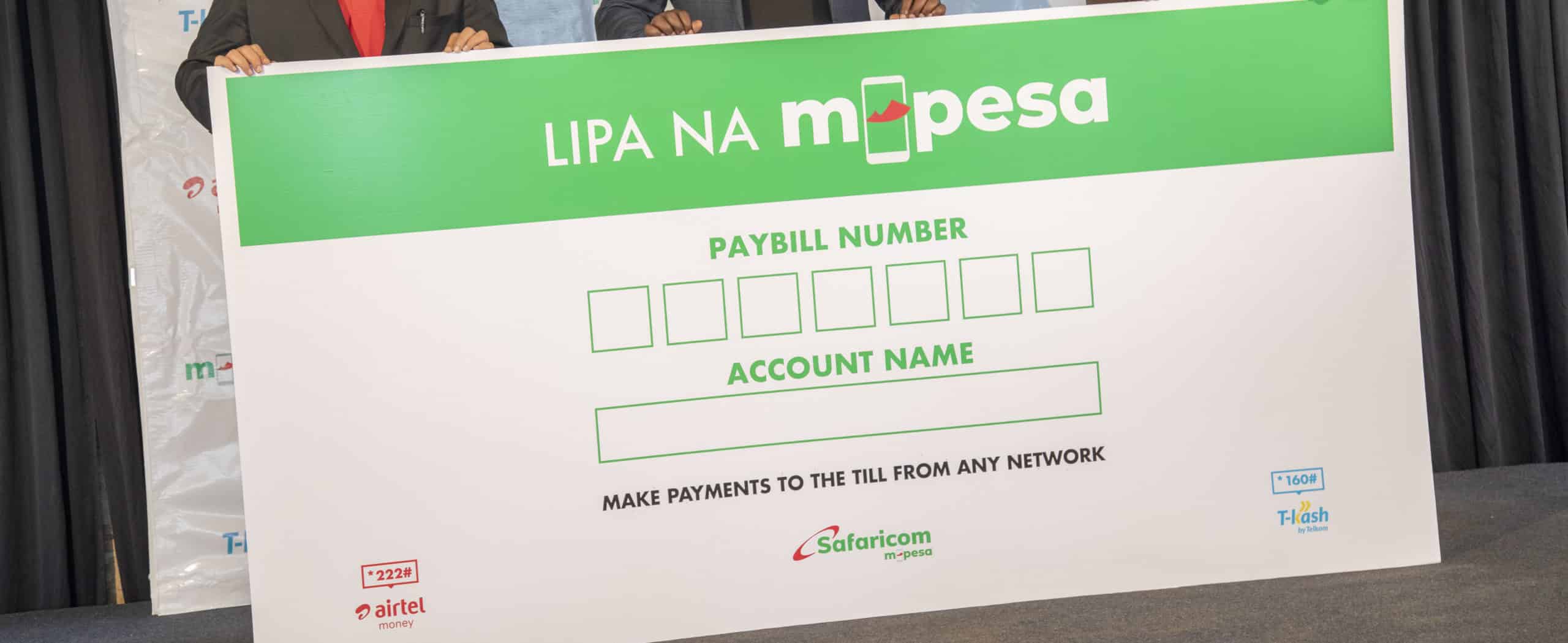
A Safaricom Paybill number is a six or seven-digit business code that lets customers pay you through M-Pesa’s Lipa Na M-Pesa service by entering your Paybill number and a unique account number that identifies their payment.
Unlike a Till number, which goes to an M-Pesa merchant wallet, Paybill funds settle directly into your business bank account.
Application is free, done online at m-pesaforbusiness.co.ke, and requires a registered business with the relevant documents.
What a Paybill Number Is and When You Need One
A Paybill number suits businesses that collect payments against a reference, such as a customer account number, an invoice number, an admission number, or a unit number.
That account number field is the defining feature of Paybill: it lets you reconcile who paid, how much, and against which account, automatically, rather than manually matching names and amounts after the fact.
Paybill is the right product for landlords collecting rent by unit, schools collecting fees by admission number, SACCOs collecting member contributions, utilities, subscription services, churches, NGOs, and any business that sends invoices and needs to match incoming payments to specific customers or transactions.
If you simply want customers to pay you in person at a shop or market stall, a Till number or Pochi la Biashara is a simpler fit.
Requirements: What You Need Before You Apply
Paybill requires a registered business. The specific documents depend on your business structure.
For sole proprietors:
- Valid National ID, Passport, Alien ID, or Military ID
- KRA PIN certificate
- Single Business Permit or Certificate of Registration from the county government
- Cancelled cheque or letter from your bank confirming your business bank account details
- A Safaricom SIM card registered in your name for notifications and account management
- A valid email address for statements and account verification
- Completed Paybill application form
For registered companies:
- Valid IDs or passports for all directors
- KRA PIN certificates for the company and all directors
- Certificate of Incorporation
- CR12 (certificate of directors and shareholders), valid within the last 90 days
- Most recent annual returns filing receipt
- Cancelled cheque or company bank letter confirming account details
- A stamped board resolution signed by directors authorising the Paybill application
- Completed Safaricom AML/KYC questionnaire
For NGOs, schools, churches, and organisations:
- Certificate of registration from the relevant authority
- Letter from the governing board or trustees confirming registration and authorised signatories
- Filled, stamped resolution letter signed by the relevant officials
- ID documents for all named signatories
- Bank account details
A critical practical point before you begin: names must match exactly across your ID, KRA PIN certificate, and business registration documents.
A mismatch between how your name appears on your national ID versus your KRA PIN is the most common reason Paybill applications are delayed or rejected. Check and align all three before uploading anything.
How to Apply: Step by Step
Step 1: Go to the M-Pesa for Business portal
Visit m-pesaforbusiness.co.ke and click Apply Now. This is Safaricom’s self-onboarding portal for all Lipa Na M-Pesa business products including Paybill and Till.
Step 2: Select Paybill
Choose the M-Pesa Paybill option and click Apply Now. You will be prompted to select your settlement option. For Paybill, funds settle to your business bank account, which is the standard setup for all Paybill applications.
Step 3: Select your business type
Choose between Sole Proprietorship, Partnership, or Limited Liability Company. This determines which document fields you will need to complete and upload.
Step 4: Fill in your business details
Enter your business name, KRA PIN, physical business address, bank account details, and the M-Pesa number that will serve as the administrator for the account. This is the number that will receive notifications and manage fund withdrawals.
Step 5: Upload your documents
Upload scanned or photographed copies of the required documents for your business type. Ensure all documents are clear, legible, and complete before submitting.
READ ALSO:How to Set Up Pochi la Biashara in Under 5 Minutes (No Paperwork Needed)
Step 6: Submit and await approval
Submit your application. Safaricom will review the documents and contact you via the registered number and email if any clarification or additional documents are needed.
Approval typically takes two to five business days for straightforward applications with clean documents.
Step 7: Activate your Paybill
Once approved, Safaricom will send your Paybill number and access credentials to your registered line and email.
You will receive access to the M-Pesa Business portal at pay.safaricom.co.ke, where you can manage transactions, view statements, initiate settlements, and add operator users.
Alternative route: Safaricom shop
For businesses with complex document situations or company structures, visiting a Safaricom shop or enterprise office with physical copies of all documents allows an agent to review everything on the spot.
This route is slower than the online portal but reduces back-and-forth if document queries arise.
What a Paybill Number Costs
Applying for a Paybill number is free. There is no setup fee and no monthly fee.
Once active, Safaricom charges a transaction fee of 0.5% per incoming payment, capped at KSh 200 per transaction.
Collections below KSh 200 are free. Customers pay nothing additional to send money to your Paybill; the charge sits on the business side at settlement.
Understanding Account Numbers: The Core of How Paybill Works
The account number field is what makes Paybill different from every other M-Pesa business product.
When a customer pays your Paybill, they enter your Paybill number plus an account number that you assign to them.
That account number can be anything you define: a tenant’s unit number, a student’s admission number, a member ID, an invoice reference, or a customer account code.
Every incoming payment to your Paybill arrives with that account number attached in the transaction data.
If you connect your Paybill to an accounting or reconciliation system through the Daraja API, payments can be matched automatically to the correct customer or invoice without manual intervention.
For businesses handling high volumes of incoming payments from many different customers, this reconciliation capability is the core value of Paybill over other M-Pesa business products.
After Approval: Managing Your Paybill
Once live, your Paybill is managed through the M-Pesa Business portal at pay.safaricom.co.ke or the M-Pesa Business App.
From there you can view real-time transaction data, download statements, initiate settlements to your linked bank account, and add operator users with defined permissions.
Before going live with real customers, send a small test payment from a second M-Pesa line to verify that the account number format you have defined works correctly and that settlements reach your bank account as expected.
Catching a configuration issue before customers experience it saves significantly more time than troubleshooting after payments have already come in.
For businesses that want to trigger M-Pesa payment prompts automatically, collect payments within apps or websites, or automate reconciliation against customer accounts, the Daraja API connects your Paybill to your systems and unlocks STK Push (the automatic payment prompt that appears on a customer’s phone).
Daraja access is applied for separately through Safaricom’s developer portal at developer.safaricom.co.ke.
Fees, requirements, and portal details should be verified at safaricom.co.ke or m-pesaforbusiness.co.ke before applying, as these are subject to change.


Leave a Reply